How to add addresses in the Contact Book?
You can add the addresses to the contact book manually one by one or import the address list to the app. To know more about importing the addresses, click here
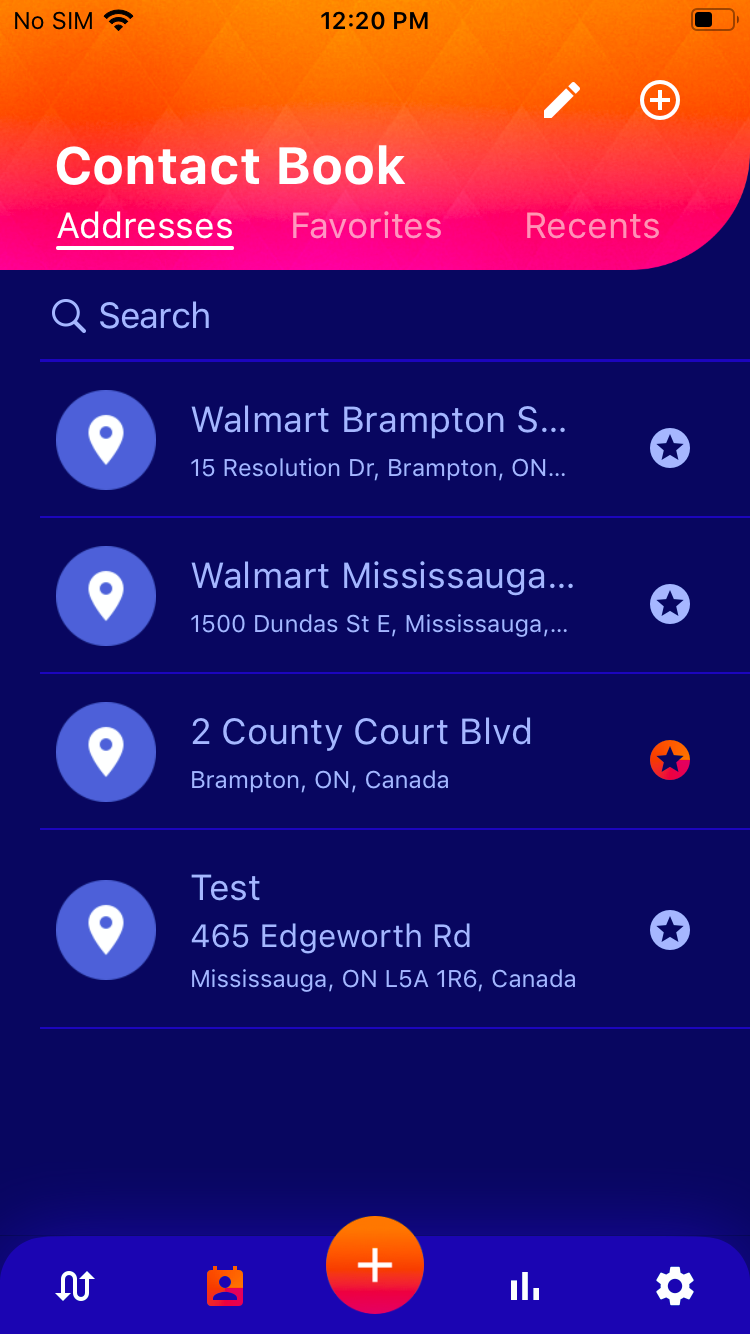
To add the addresses manually one by one
- Open the Route Planner App
- Click on theicon
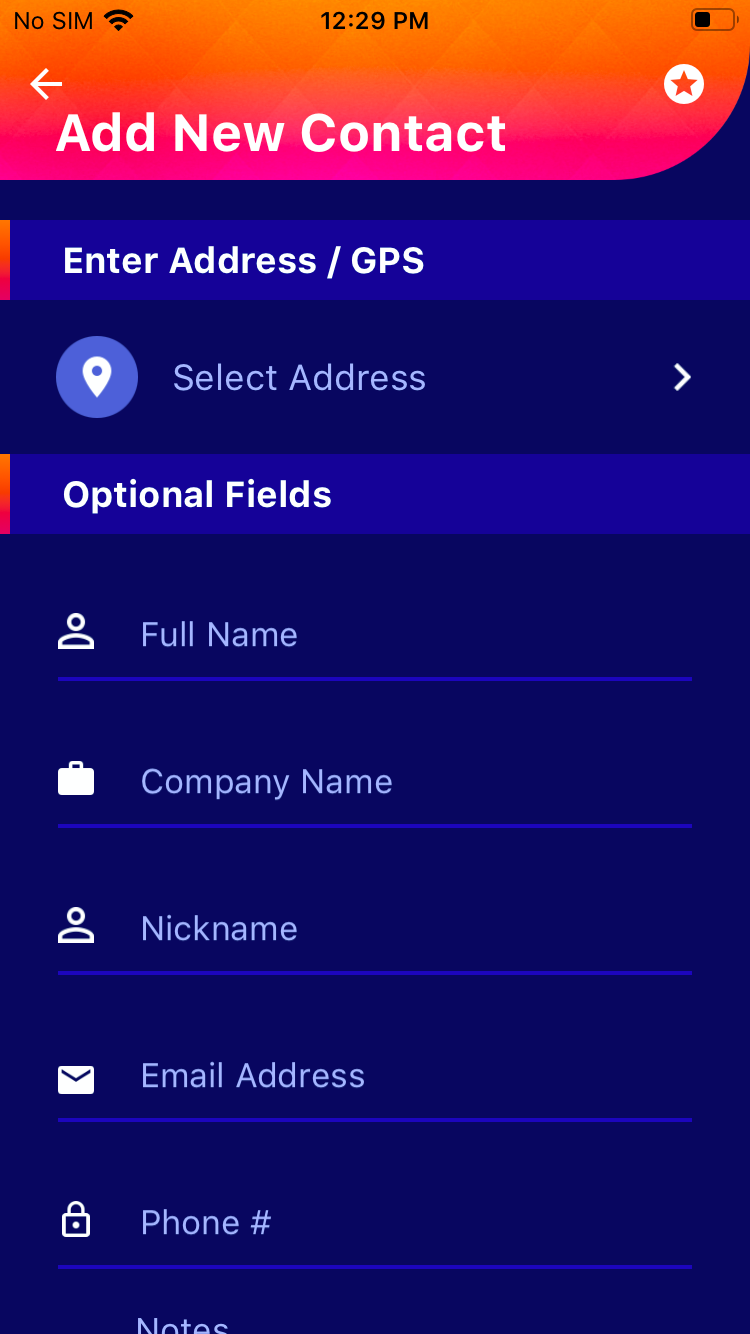
- Then click on the plus sign
- Then select the address from the map or your current location
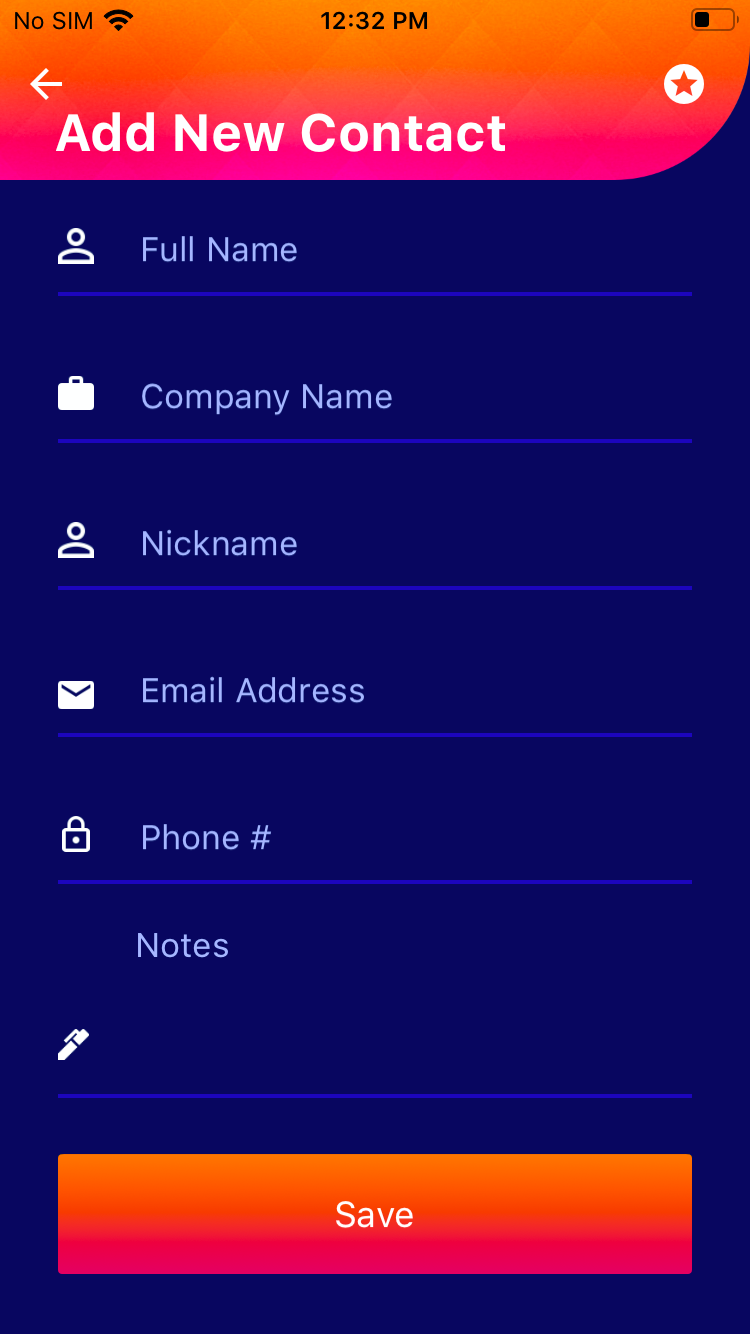
- Enter the optional fields like Full Name, Company Name, Email Address, Phone Number, and any notes with regards to the address
- To add to favorites, simply click the star icon before hitting the save
- Click Save
 icon
icon
 before hitting the save
Repeat this process for each address you want to enter one by one.